Quick Tutorial
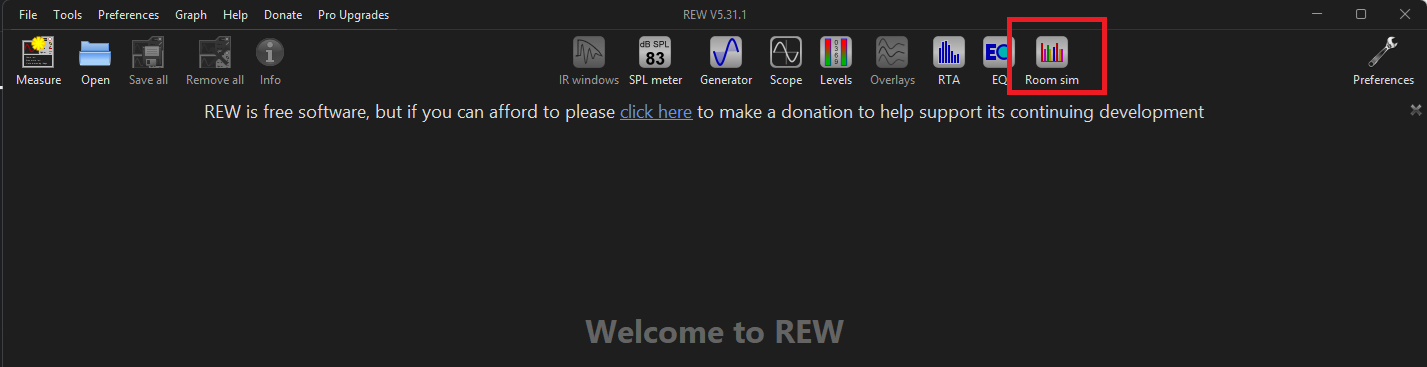
- Open REW.
- From the top icon menu, select Room Sim.
- A new window will open, showing the available options.
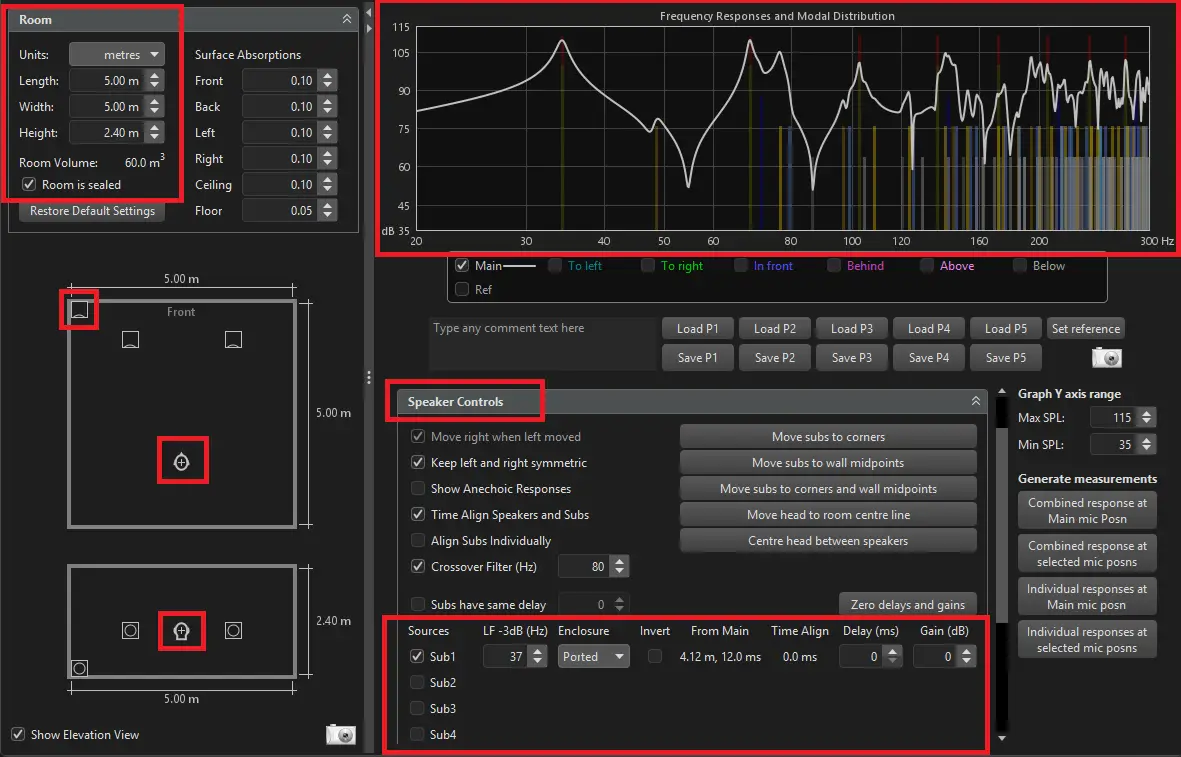
- In the upper-left corner, enter your room dimensions under Room. If you have a dedicated, airtight room, check the “Room is sealed” box.
- Under Speaker Controls, select the number of subwoofers you have. I recommend removing the two speakers so they don`t affect your result. you can check them away in the bottom of the speaker controls.
- The room view will now display the chosen number of subwoofers, and a listener icon.
- In the room drag your subwoofer/s. to their position. Tip: left‑click a subwoofer to change the orientation of its driver.
- Move the listener icon to your listening position. Also adjust the listener’s head height in the elevation view to ensure accurate results.
- When finished, the graph will show the peaks and nulls at your listening position, as in the example to the right. Remember to not focus on Hz above your receivers LFE settings, if your settings is 120Hz then focus from 120Hz to the lowest hz your sub can play.
- With this information, experiment with subwoofer placement and settings under Speaker Controls — Enclosure, Invert, Delay, and Gain. You can also add additional subwoofers to see if adding 1 or several subwoofers improves your baseline before EQ fine tuning.